News & Trending
[et_pb_section fb_built="1" fullwidth="on" _builder_version="3.22" custom_padding="0px|0px|0|0px|false|false"]
[/et_pb_section][et_pb_section fb_built="1" _builder_version="3.22" custom_padding="0|0px|52px|0px|false|false"][et_pb_row _builder_version="3.25" background_size="initial" background_position="top_left" background_repeat="repeat" max_width="740px" custom_padding="29px|0px|19.1875px|0px|false|false" use_custom_width="on" custom_width_px="740px"][et_pb_column type="4_4" _builder_version="3.25" custom_padding="|||" custom_padding__hover="|||"][et_pb_text _builder_version="4.3.4" text_font="Signika||||||||" header_font="Signika||||||||" header_2_font="Signika||||||||" header_3_font="Signika||||||||" header_4_font="Signika||||||||" header_5_font="Signika||||||||" header_6_font="Signika||||||||" hover_enabled="0" inline_fonts="Roboto"]
5 Step Guide To Running Facebook Ads For Cafes & Restaurants
[/et_pb_text][et_pb_text _builder_version="4.3.4" text_font="Roboto||||||||" header_font="Signika||||||||" header_2_font="Signika||||||||" header_3_font="Signika||||||||" header_4_font="Signika||||||||" header_5_font="Signika||||||||" header_6_font="Signika||||||||" background_size="initial" background_position="top_left" background_repeat="repeat" max_width_last_edited="off|desktop" hover_enabled="0"]
You’ve probably heard time and time again that as a business owner you should be running online ads for your business to help you get more customers.
But hardly anyone will teach you how to actually do it unless you paid them a hefty price for it. And sure, maybe you can spend hours and hours trying to learn how to do it yourself and hopefully get it to work, but my guess is you don’t have the luxury of time because you have an entire business to operate!
But don’t worry, because today I’ll be guiding you step-by-step on how to set up Facebook (FB) ads for your business that can be up and running in minutes!
This step-by-step guide will be broken down into 5 sections:
Create FB Business Manager & Ad Account
Post
FB 20% text rule
Budget
Location targeting + radius
[/et_pb_text][et_pb_text _builder_version="4.3.4" hover_enabled="0"]
Creating FB Business Manager & Ad Account
This is the most tedious part of the process that I’ll be sharing with you today, but it’s very important that you set this up correctly and understand the difference between the business manager & ad account.
This will help you to navigate the platform better and get you up and running as fast as possible.
Business Manager
The business manager is essentially a platform for you to run ads, manage your business page, create custom audiences (we can cover this in more detail in a future blog post), etc.
So before you run ads, it is recommended that you create a business manager for your business.
This makes it easier for you to manage employees or agencies you may give access to, analyze your data and metrics for just your business and so on.
NOTE: If you decide to skip this part and run ads from your personal FB account, this will cause problems down the line when you’re looking to scale your business online.
The setup process to create your business manager is simple. You can do so by clicking here.
Ad Account
To put it simply, an ad account is where you’ll create and control ads that you decide to run.
This account will reside in your business manager that you would have set up for your business in the previous step.
Follow the steps provided and create your FB ad account by clicking here.
Congratulations! Once you’ve set up both your business manager & ad account, we’re now ready to move on to where the real fun begins.
[/et_pb_text][et_pb_text _builder_version="4.3.4" hover_enabled="0"]
Post
With your ad account set up and ready-to-go, there is an endless number of ads you can run, as long as they comply with FB’s advertising rules & policies.
There are multiple ad formats you can run but the most common ones being, images, video and carousel (multiple images).
But as a start, let’s post an image ad today.
I’ve written an entire blog post on how to create the perfect image for social media, which can also be used for running ads. You can read it here.
NOTE: One thing to note when you’re running image ads is to keep in mind FB's 20% text rule, which I explain in the next section.
[/et_pb_text][et_pb_text _builder_version="4.3.4" hover_enabled="0"]
FB 20% text rule
You may be asking, what’s the 20% text rule?
thenextad explains it clearly:
“When Facebook first announced the introduction of the 20% rule, it explained that Facebook advertisers were allowed to cover their ads' images with no more than 20% text. With the help of a tool, users were able to see how much of the space they could take up with text.”
And this is important for you because complying with the 20% rule will determine how well your image ad will perform in terms of reach (how many people see your image), regardless of how much you spend.
The good news is that FB created a text overlay tool for you to check if your image complies with the rule.
You can access the tool here, and I suggest you bookmark it for easier access in future.
[/et_pb_text][et_pb_text _builder_version="4.3.4" hover_enabled="0"]
Budget
For you to better understand the last 2 steps of this guide, Budget and Location Targeting & Radius, I’ll be setting up an entire Facebook campaign from scratch that you can follow along.
So, now that you have an image that complies with the 20% text rule, it’s time to create your ad on Facebook.
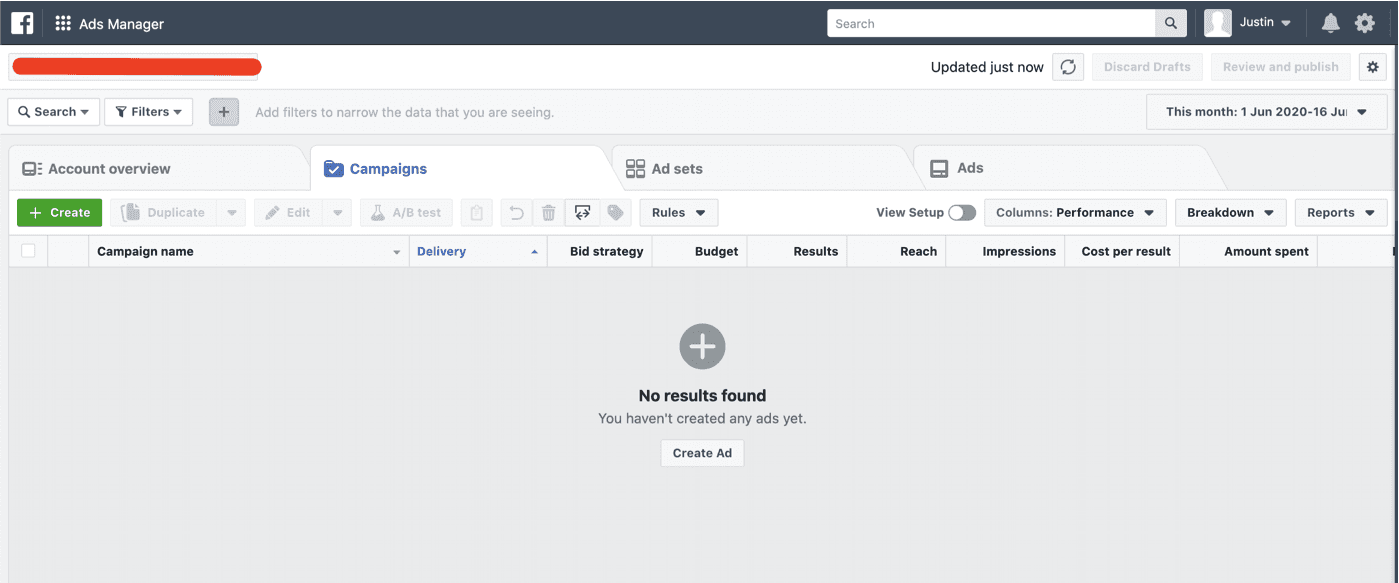
Use this link (I suggest you bookmark this too for easy access), choose your ad account and go to your ads manager. You should reach a page that looks like this.
[/et_pb_text]
[et_pb_text _builder_version="4.3.4" hover_enabled="0"]
This looks like there’s a lot of information to take in, but don’t worry because it’s easier than it looks.
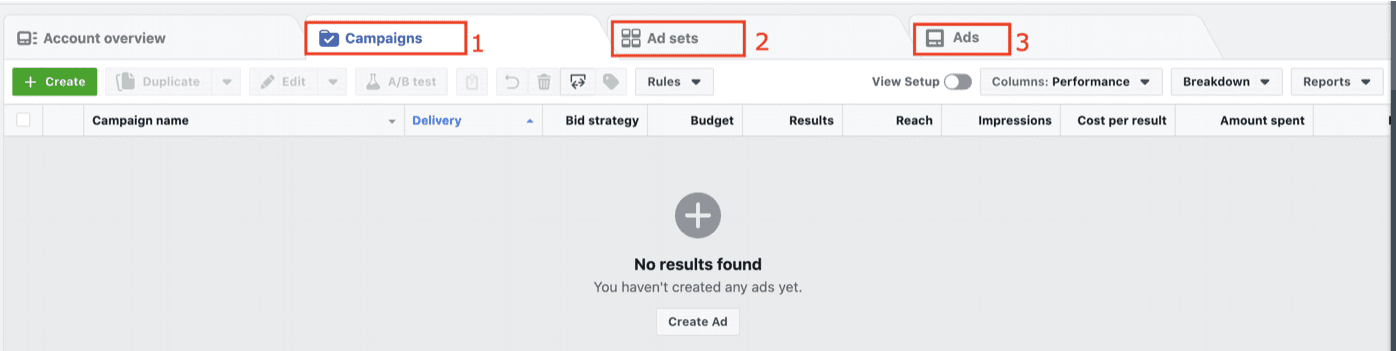
When creating ads, there are 3 main tabs to focus on.
[/et_pb_text]
[et_pb_text _builder_version="4.3.4" hover_enabled="0"]
Campaigns Tab
Ad Sets Tab
Ads Tab
Remember these 3 tabs as we go through this guide as I’ll be referring to them again.
[/et_pb_text][et_pb_text _builder_version="4.3.4" hover_enabled="0"]
Campaigns Tab
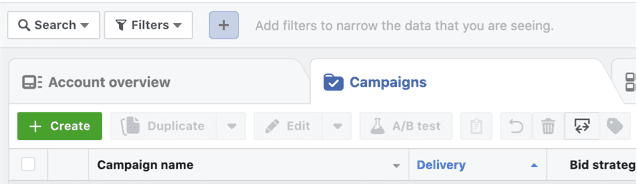
To run an ad, the first thing you have to do is create a campaign.
1) Click the Green ‘+ Create’ button on the left hand side (refer to the image below).
You should reach this section once you’ve clicked Create.
[/et_pb_text]
[et_pb_text _builder_version="4.3.4" hover_enabled="0"]
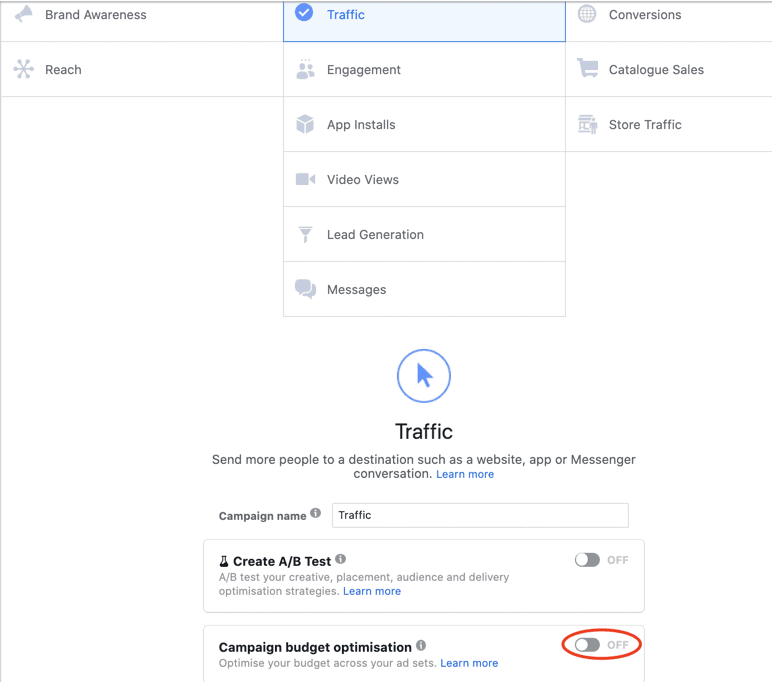
Let’s choose to create a ‘Reach’ campaign which is in the ‘Awareness’ column.
Give your campaign a name and toggle on the ‘Campaign Budget Optimization (CBO)’ button. Facebook has been planning to make CBO mandatory for some time now so it’s better to have it on for best practice. You can read more about what CBO is here.
[/et_pb_text]
[et_pb_text _builder_version="4.3.4" hover_enabled="0"]
Once you’ve toggled it on, this is where you’ll set the budget for your ad, basically how much you want to spend for your campaign. There are 2 options:
Daily Budget - there is no end date for your campaign. Your ad will run continuously unless you turn it off manually
Lifetime Budget - your campaign has an end date. Facebook will automatically spend according to your budget and how many days you set your campaign to run for.
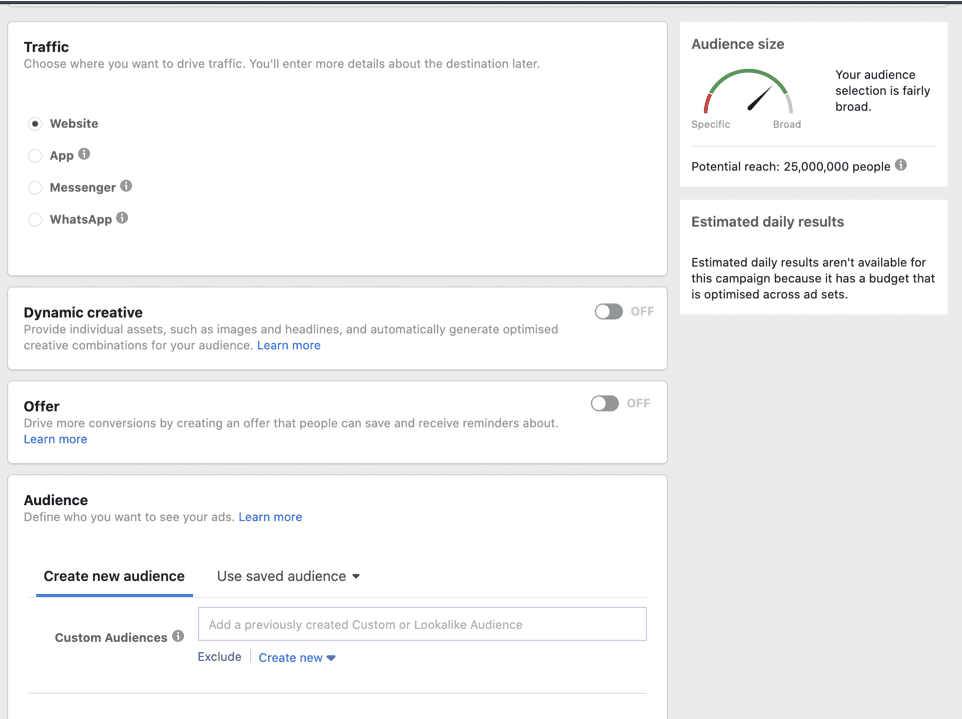
Once you click ‘Continue’, you’ll reach a page that looks like the one below.
[/et_pb_text]
[et_pb_text _builder_version="4.3.4" hover_enabled="0"]
Ad Sets Tab
Within the ad sets tab, this actually brings us to our last step in this 5 Step Guide, Location Targeting & Radius.
[/et_pb_text][et_pb_text _builder_version="4.3.4" hover_enabled="0"]
Location Targeting & Radius
Let’s pick up where we left off.
On the current page you’re on, choose your business’ Facebook page to promote. If you haven’t already created one, you can do it by following the guide here.
Now it’s time to create your audience.
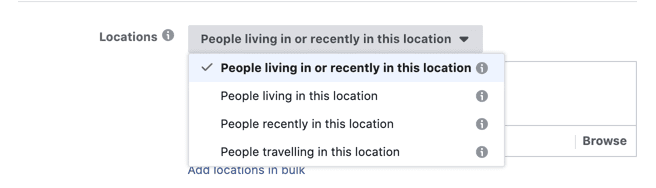
If you’re a restaurant or cafe and you serce dine in, that means location targeting & radius setup is especially important because your business will primarily serve customers living closer to your store location.
[/et_pb_text]
[et_pb_text _builder_version="4.3.4" hover_enabled="0"]
Location Targeting
Choose ‘People living in this location’.
Next, type in the area that your store is located in. If you have multiple locations, you can add more locations by typing in more.
Radius
Once you’ve targeted your audience by location, it’s time to set your radius.
To ensure that you’re targeting the right audience, which are the people that are closest to your location, lower the distance of the radius you’re targeting.
Click on the down arrow beside the area name you’ve selected. If you already know your ideal customer, you also have the option to target by age, gender, and interests. Otherwise, leave it as it is and let Facebook do it’s thing.
Once you’ve done that, you’re nearly complete.
Click Continue and you’ll reach the 3rd and final tab I mentioned, the ‘Ads’ tab.
Ads Tab
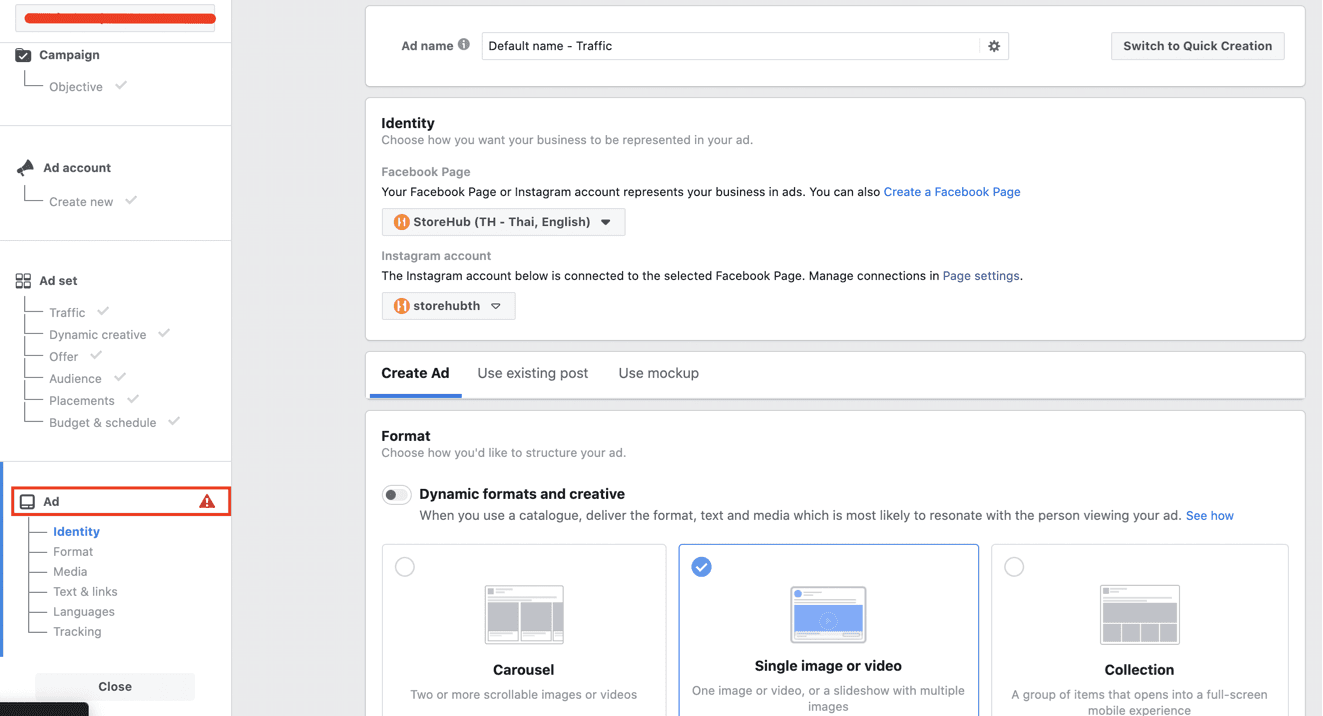
This is where you’ll add in the image you created previously to be used as your ad. You should see a page that’s similar to the one below.
[/et_pb_text]
[et_pb_text _builder_version="4.3.4" hover_enabled="0"]
Scrolling down, you have the option to promote your business Instagram account if you have one, but this is optional.
Select ‘Single Image’ and upload your image by clicking the ‘Add Media’ button.
Add text in the ‘Text and Links’ section and make sure to include relevant information that you want to share with your audience.
You should mention:
what your business is about e.g. Best Coffee in Malaysia!
your store address
contact info
if you do deliveries
promotions (if you’re running any)
Once you’re satisfied with your ad, you can Confirm and Publish your campaign.
If you’ve followed this guide up until now, Congratulations! You’ve successfully created your first Facebook campaign.
And don’t worry if it says ‘In Review’ in the status section. That just means that a Facebook rep is reviewing your campaign to make sure that it complies with their ad policies.
Campaigns will usually be approved within 24 hours.
I hope this 5 step guide to running Facebook Ads has helped and don’t hesitate to ask any questions in the comments section below and I’ll be more than happy to answer them.
Thank you for your time and good luck with your ads!
[/et_pb_text][/et_pb_column][/et_pb_row][/et_pb_section]